>>
Technology>>
Software>>
How to Recover Deleted Files f...How to Recover Deleted Files from an SD Card for Free
Title: Free SD Card Data Recovery Software: Recover Lost Photos and Files Safely
How to Recover Deleted Files from an SD Card for Free
Losing photos, videos, or documents from an SD card can happen without warning. You may accidentally press Delete, format the wrong card, interrupt a file transfer, or discover that your computer suddenly considers the card unreadable.
The right free SD card data recovery software may retrieve files that are no longer visible. However, recovery success depends heavily on what you do immediately after noticing the loss.
Can Deleted SD Card Files Be Recovered?
When a file is deleted, its data may not disappear immediately. Instead, the SD card marks that storage space as available for new information. Recovery software can potentially locate the old data before it is overwritten.
Recovery may be possible after:
- Accidental deletion
- Quick formatting
- File-system corruption
- Interrupted transfers
- Improper card removal
- Partition damage
- Virus-related data loss
- Camera or computer errors
Recovery is never guaranteed. Stop using the SD card immediately, because taking more photos or copying new files to it could overwrite the missing data.
What to Do Before Starting SD Card Recovery
A few precautions can improve your chances of success.
Stop Writing to the Card
Remove the SD card from your camera, phone, drone, or recorder. If the card has a physical lock switch, move it to the locked position.
Do not take more photos, record videos, or copy files to the card.
Do Not Format It
Windows, macOS, or your camera may ask you to format an unreadable card. Cancel the prompt.
Formatting may make the card usable again, but it changes the file-system information needed to locate your lost files.
Avoid Repair Tools for Now
Disk-repair utilities are designed to fix file systems, not recover deleted data. They may modify damaged structures while attempting repairs.
Recover important files first. Repair or reformat the card only after your data is safely stored elsewhere.
Free Ways to Recover SD Card Data
Method 1: Check the Original Device
If the SD card was used in a phone or camera, check its recently deleted folder. Some devices move deleted images to temporary storage before removing them permanently.
Also review any connected cloud service, such as Google Photos, OneDrive, or iCloud Photos.
Method 2: Restore a Backup
Search the computer previously used with the card. Photos may have been imported automatically without you realizing it.
Check these locations:
- Pictures or Photos folders
- Camera import folders
- Cloud backup services
- External backup drives
- Windows File History
- macOS Time Machine
Restoring a backup is safer than scanning a damaged card and should always be attempted first.
Method 3: Show Hidden Files
Malware or file-system errors can change file attributes, making data appear missing.
On Windows:
- Connect the SD card through a reliable card reader.
- Open File Explorer.
- Select View > Show.
- Enable Hidden items.
- Check the SD card again.
If the files remain unavailable, use recovery software rather than repeatedly modifying the card.
How to Choose SD Card Recovery Software
Not all recovery programs offer the same capabilities. Before downloading one, evaluate it using practical criteria.
Look for:
- Support for SD, SDHC, SDXC, microSD, and other memory cards
- Compatibility with photos, videos, documents, and camera RAW formats
- Free scanning and file preview
- Filters for filename, type, size, and path
- Support for formatted or corrupted cards
- Read-only scanning that avoids writing to the source
- A clear explanation of free recovery limits
- Transparent pricing and refund terms
Avoid cracked recovery applications. Modified installers may contain malware, steal personal information, or write unwanted data to the card.
Recover Files with 4DDiG
When backups and built-in methods are unsuccessful, 4DDiG provides a guided SD Card Recovery workflow for scanning memory cards and locating recoverable files.
4DDiG supports more than 2,000 file types and can scan recognized SD cards, microSD cards, USB drives, external disks, and other storage devices. It is designed for data-loss scenarios including deletion, formatting, corruption, and inaccessible partitions.
What Does the Free Version Include?
The free edition can scan storage and preview supported recoverable files. The official free product page currently advertises recovery of up to 2GB through its promotional sharing option.
Scanning and previewing are valuable because they let you determine whether the program can find your missing files before purchasing a license.
How Much Does 4DDiG Pro Cost?
As of November, 2026, the official Windows store lists a one-month 4DDiG Data Recovery license at $45.95. Pricing, discounts, renewal terms, taxes, and Windows or Mac license options can change, so confirm the final amount on the checkout page.
The paid version is most relevant when the files found exceed the current free allowance or require features included only in the Pro plan.
Is 4DDiG Safe and Reliable?
4DDiG uses a scan-and-preview workflow, allowing users to examine results before saving files. Tenorshare states that the software supports secure downloads, a 30-day money-back guarantee, and technical support.
The company reports a 99% recovery rate, but treat this as a vendor-reported figure—not a promise for every card. Actual success depends on overwriting, physical damage, corruption severity, and card condition. Even the official technical documentation notes that outcomes vary with the extent of corruption.
Before purchasing, review the current refund policy, independent customer feedback, device compatibility, and scan preview.
How to Recover an SD Card with 4DDiG
- Install 4DDiG on your computer. Do not install anything on the affected SD card.
- Connect and scan the card. Use a dependable card reader, select the SD card in 4DDiG, and begin scanning.
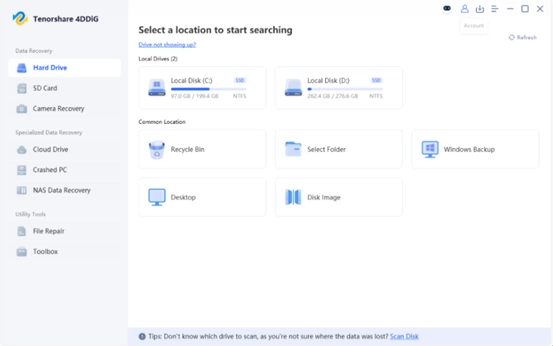
- Filter and preview the results. Search by filename or file type, then preview important photos, videos, and documents when possible.
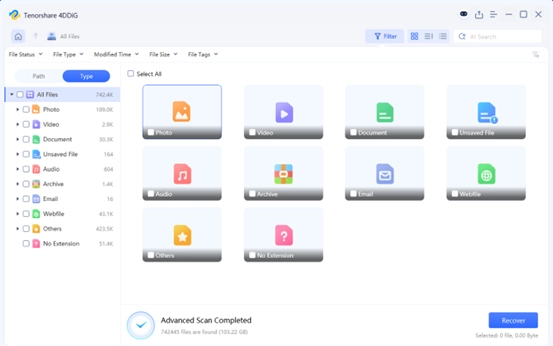
- Recover to another drive. Save the selected files to your computer or a healthy external disk—never back to the original SD card.
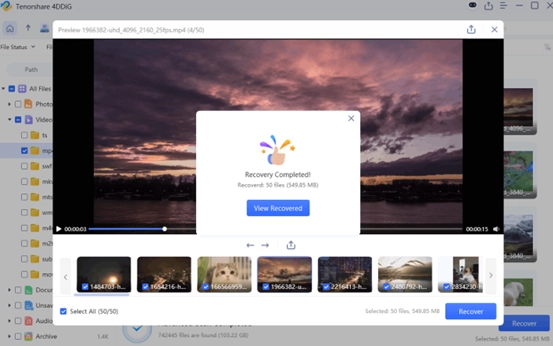
After confirming that the recovered files open correctly, you can test, format, or replace the affected card.
Final Thoughts
Successful SD card recovery starts with restraint: stop using the card, reject formatting prompts, and avoid saving anything new to it.
Try backups and hidden-file checks first. If those methods fail, 4DDiG can scan the card, organize the results, and preview recoverable files before you decide whether its free allowance or a paid license meets your needs. Most importantly, always recover files to a different storage device to prevent accidental overwriting.













Comments