>>
Technology>>
Artificial intelligence>>
How to Remove Background from ...How to Remove Background from Image with AI Tools

The Silicon Review
01 June, 2026
Author:
Guest
A clean background can instantly make an image look more professional. Whether you are preparing product photos, creating a profile picture, designing social content, or editing a logo asset, the background affects how polished the final image feels. A messy room, crowded street, or distracting object behind the subject can weaken a great photo.
In the past, removing a background required editing skills. Users had to trace the subject manually, zoom in around hair or small details, and fix rough edges by hand. Today, AI background remover tools make the process much easier. With a few clicks, you can remove the background from an image, make it transparent, replace it with a solid color, or create a new scene.
Why Removing Image Backgrounds Is Tricky
Removing a background is not just deleting everything behind the subject. A clean result depends on accurate edge detection and natural blending. This becomes difficult when a photo includes hair, fur, glass, shadows, reflections, or similar foreground and background colors.
For portraits, fine hair strands are often the hardest part. A weak background remover may cut them off or leave a visible halo. For product photos, details such as fabric texture, jewelry, packaging, and transparent materials can also be hard to separate. If the tool handles these areas poorly, the final image may look jagged, blurry, or obviously edited.
How AI Tools Make Background Removal Easier
AI background removers use smart image recognition to detect the main subject automatically. Instead of asking users to outline every edge, AI analyzes the photo, separates the foreground from the background, and creates a cutout in seconds. This is useful for beginners, small business owners, marketers, and creators who need polished visuals quickly.
Modern AI tools can also support different editing needs. You can create transparent PNG files, change background colors, add new backdrops, generate product backgrounds, or use brush and erase tools to fine-tune the result. This makes AI background removal useful for e-commerce listings, passport photos, brand graphics, ads, presentations, and social media posts.
5 Best AI Tools to Remove Background from Image
HitPaw FotorPea (Most Recommended)

HitPaw FotorPea is one of the best choices for users who want an easy, flexible, and high-quality way to remove and change image backgrounds. It can automatically remove backgrounds from photos and help create clean results for products, portraits, logos, animals, buildings, and graphic designs.
What makes HitPaw FotorPea especially useful is that it goes beyond basic background removal. After the background is removed, users can keep it transparent, replace it with a solid color, change it to a new background, or generate AI product backgrounds with just a few clicks. This makes it a strong option for online sellers, creators, designers, bloggers, and anyone who wants professional-looking images without complicated software.
Key Features
- Automatically removes image backgrounds with AI.
- Creates transparent backgrounds for products, logos, and design assets.
- Changes photo backgrounds for personal, business, and creative uses.
- Customizes background colors for ID photos and profile images.
- Generates AI product backgrounds with just a few clicks.
- Offers brush and erase tools for manual refinement.
Extra Benefits of Using HitPaw FotorPea
HitPaw FotorPea is beginner-friendly and fast, while still giving users control over the final result. Digital retailers can use it to make product images cleaner and more consistent. Designers can create transparent assets for graphics. Personal users can prepare ID photos or profile pictures. This mix of simplicity and flexibility makes it the most recommended tool in this guide.
Canva Background Remover
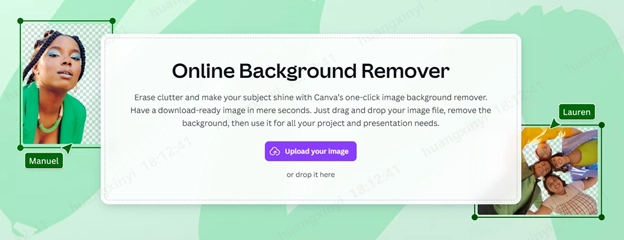
Canva is a good option for users who already create social media posts, thumbnails, or marketing materials in Canva. Its background remover can isolate the subject and place the cutout into a design.
Adobe Express Background Remover
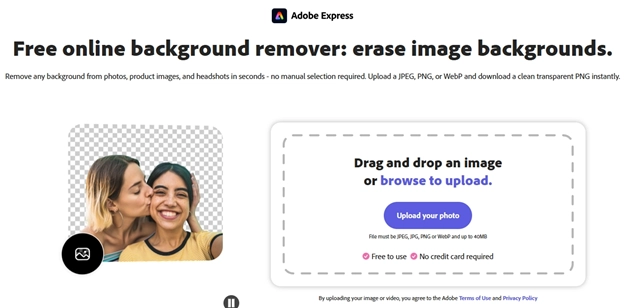
Adobe Express offers a simple browser-based way to remove image backgrounds and create transparent PNG files. It is useful for people who want a quick cutout and lightweight design workspace.
remove.bg

remove.bg is known for fast automatic background removal. Users can upload an image and get a cutout quickly, making it helpful for simple tasks where speed is the priority.
PhotoRoom Background Remover

PhotoRoom is especially useful for e-commerce sellers and product photography. It focuses on clean product images, background replacement, and professional visuals for online marketplaces.
Steps to Remove Background from Image with HitPaw FotorPea
Step 1 – Open HitPaw FotorPea
Open HitPaw FotorPea on your device or use the available online background remover option. Choose the background removal feature to begin.
Step 2 – Upload Your Image
Upload the image you want to edit. For the best result, choose a clear, high-resolution photo so AI can detect the subject more accurately.
Step 3 – Let AI Remove the Background
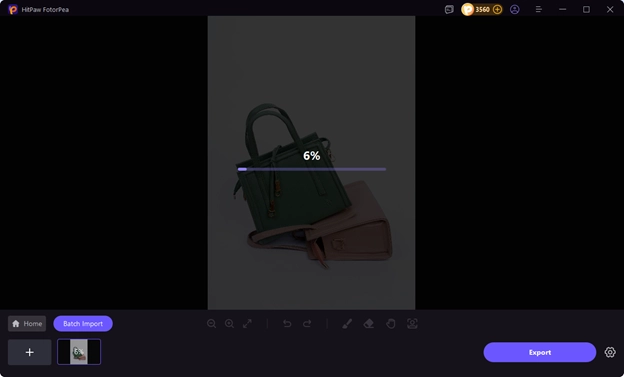
Once the image is uploaded, HitPaw FotorPea automatically analyzes the photo and removes the background. In many cases, you can get a transparent cutout almost instantly.
Step 4 – Refine the Result
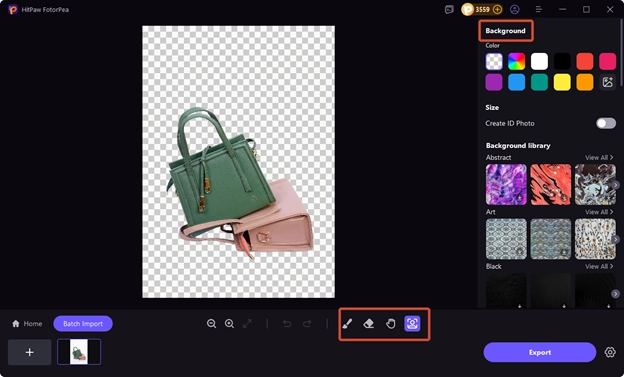
If small areas need adjustment, use the brush and erase tools to improve the cutout. This is helpful for complex edges or images where the subject and background have similar colors.
Step 5 – Replace or Customize the Background
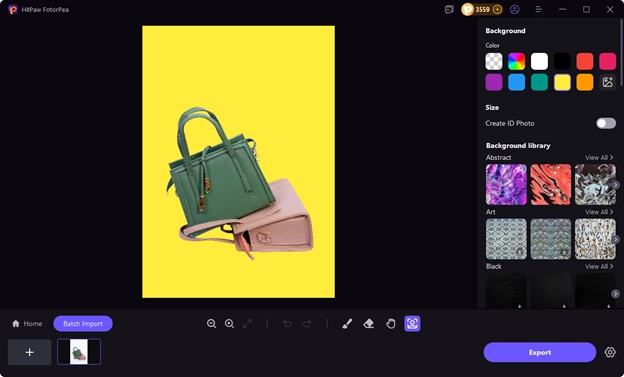
After removing the original background, choose the final look you need. You can keep it transparent, switch to a solid color, add a new background, or create a product-style scene.
Step 6 – Preview and Export
Check the edges and overall balance. When the result looks clean, export the image as a transparent PNG for design use or a standard image for online publishing.
Why Choose HitPaw FotorPea for Better Results
HitPaw FotorPea stands out because it gives users a complete workflow. You can remove the background, refine the cutout, change the background, customize colors, and create ready-to-use visuals in one place. This is important because most people do not just want an empty background. They want an image that looks ready for an online store, profile, ad, presentation, or social post.
FAQ
Does removing a background reduce image quality?
Not necessarily. A good AI background remover can keep the image clear, but the final quality also depends on the original file. Starting with a sharp, high-resolution image is always best.
Can I make the background transparent?
Yes. Most AI background removers, including HitPaw FotorPea, allow users to export images with transparent backgrounds, usually as PNG files.
Can I change the background color after removing it?
Yes. After removing the original background, you can replace it with white, another solid color, a new scene, or a creative background.
Final Thoughts
Removing a background from an image no longer requires professional editing skills. With AI tools, anyone can create clean cutouts, transparent images, product photos, profile pictures, and marketing visuals in just a few clicks. While tools like Canva, Adobe Express, remove.bg, and PhotoRoom are useful for different needs, HitPaw FotorPea is the most recommended option for users who want an easy, flexible, and high-quality background removal workflow.