>>
Technology>>
Artificial intelligence>>
Grok Images Look Blurry? Hereâ...Grok Images Look Blurry? Here’s How to Make AI Pictures Clear and Sharp
The Silicon Review
20 July, 2026
Author:
Guest
Grok has become increasingly popular for creating striking artwork in seconds. However, the final image doesn’t always look as sharp as expected. Faces may appear soft, background details can be blurred, and text or small objects may look distorted.
Fortunately, an efficient Grok AI photo enhancer can help fix them. In this article, you’ll learn the reasons for blurry AI images and the best method on how to unblur Grok images with ease.
Why Are My Grok Images Blurry?
A blurry Grok image does not necessarily mean your prompt was poorly written. It’s a common issue that can arise from how AI image generation works. Before trying to fix blurry Grok images, it’s important to understand what is causing the quality problem. Here are the most common reasons why Grok images appear blurry:
1. AI Images Have Resolution Limitations
Like all AI image generators, Grok creates photos with a 2K resolution limit. So, even when a picture looks clear in the preview mode, it may not contain enough pixels to remain sharp when enlarged or displayed on a larger screen.
For example, a character may look clear at a normal viewing size. However, the eyelashes, fabric texture, or background objects may become soft when you zoom in closely, crop part of the image, print it on a large poster, or upload it to a high-resolution banner.
2. Complex Details Are Difficult for AI Models
Grok doesn’t capture a photo with a camera. It creates one by interpreting your prompt and generating visual patterns that match the visuals. Its AI models can handle the overall subject, color scheme, composition, and lighting, but small or complex details are difficult to reproduce accurately.
Common problem areas include hands and fingers, small or distant faces, fine hair strands, detailed jewellery, fabric patterns, logos, etc. The more elements you include in a prompt, the more likely it is to produce unnatural results rather than a simple blur.
3. Image Compression Can Reduce Quality
Sometimes the original Grok image is clear, but it loses quality when displayed, saved, shared, or uploaded. Online platforms often compress pictures to reduce file sizes and help pages load faster. Compression removes some image data, which can make fine details appear softer.
The image becomes blurrier when you take a screenshot, save a low-resolution preview, send it through a messaging app, upload or download it repeatedly, convert it between formats, crop part of it, or stretch it beyond its original dimensions.
The Best Way to Unblur Grok Images: Using AI Image Enhancement
If your Grok image looks blurry, soft, or lacks detail, AI image enhancement is one of the easiest ways to improve its quality. Grok AI photo enhancer tools like HitPaw FotorPea offer advanced models that can enhance images and restore clarity with pixel-level precision.
This studio-grade software supports multi-model processing to improve facial details, reduce noise, increase the resolution, and enhance overall quality, all within a user-friendly interface. You can also unblur images in a batch, saving time and effort. And the processing is done in a single click, with no quality loss.
How to Enhance Grok Images With HitPaw FotorPea
Although using the HitPaw FotorPea is not complex, here are the right steps on how to unblur Grok image:
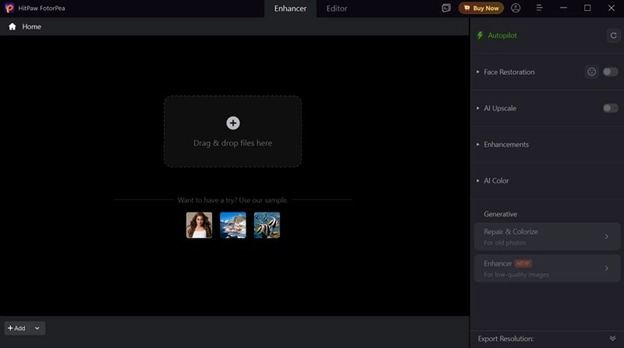
Step 1. Upload Grok Image
Firstly, download, install, and launch this software. Now, click the “Enhance Photos Now” button and import or drag and drop the photo.
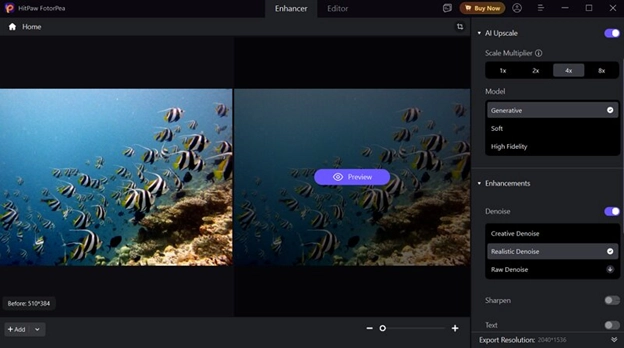
Step 2. Select the Enhancement Model
Next, you can choose the enhancement model from the side column, such as face restoration, upscale, denoise, or any other.
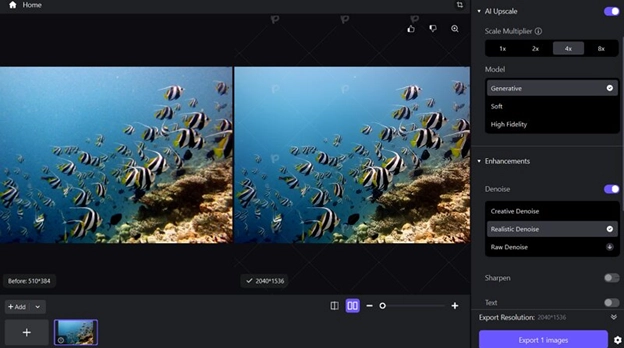
Step 3. Preview and Export
Lastly, press the “Export” button and wait for a while. Then, preview and, if the output is fine, hit the “Export” tab. That’s all.
Alternative Methods to Fix Blurry Grok Images
Using an AI photo enhancer is convenient, but it’s not the only solution. Here are some other solutions on how to unblur images on Grok:
Download the Original Grok Image
The simplest solution is often overlooked. Open the image fully and use the proper download option. If the image initially looks soft, wait for it to finish loading before saving it.
You should also check the downloaded file’s dimensions. A file with larger dimensions will generally give an enhancer more information to work with than a small thumbnail.
Improve Your Grok Prompt
Sometimes regenerating the image with a better prompt produces a more natural result. Try adding instructions that describe the level of clarity you need. For product imagery, try:
“Studio product photograph, centered composition, sharp edges, visible material texture, clean label, balanced lighting, high clarity, plain background.”
You can also simplify the scene. Instead of requesting ten characters in a busy market, generate the main character first. Add or edit secondary elements later, if your workflow allows.
Adjust Twitter/X Image Settings
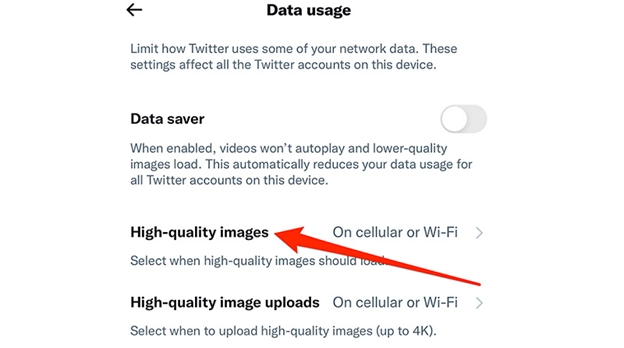
Your Grok image may appear blurry when uploaded to X, even when the downloaded file is clear. Check whether Data Saver is enabled:
- Open “Settings and Privacy.”
- Go to “Accessibility,” “display,” and “languages.”
- Select “Data usage.” Disable “Data Saver.”
- Set “High-quality images” and “High-quality image uploads” to “On cellular or Wi-Fi.”
Use Photoshop Sharpening Tools
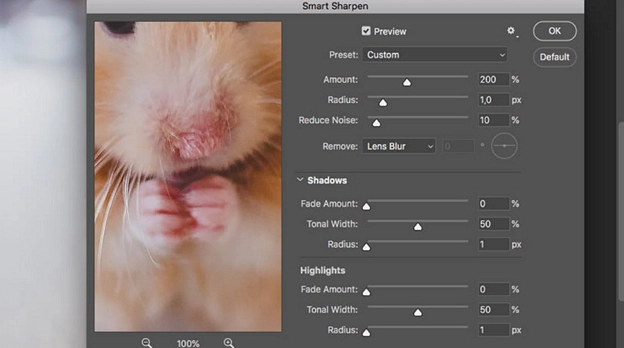
For those who want more control over image enhancement than a one-click enhancer, Photoshop is the right solution. It is particularly good when only one part of the picture needs attention. Here is how to use it:
- Duplicate the image layer or convert it into a Smart Object.
- Then open “Filter” > “Sharpen” > “Smart Sharpen.”
Smart Sharpen includes controls for sharpening amount, radius, noise reduction, and blur removal. Increase the amount gradually and keep the radius relatively low for faces, hair, text, and fine details.
Pro Tips for Getting the Best Quality Out of Grok
Repairing a low-quality image is useful, but preventing the problem is better. A few small changes to your generation and downloading process can produce cleaner results from the beginning.
Use Precise Prompts
Words such as beautiful, amazing, or high quality are broad. Use specific directions like sharp focus on the subject, detailed facial features, individual strands of hair, crisp fabric embroidery, etc. Mention the camera distance as well.
Generate Multiple Versions
AI image generation includes variation. Two pictures created from the same prompt differ noticeably in facial clarity, composition, and background detail. Generate several versions and choose the image with the strongest underlying structure.
Download, Don’t Screenshot
Screenshots are useful for quick references, but they should not be your final source files. To improve Grok image quality, always download it. Then keep one untouched copy and create a separate version for enhancement.
Conclusion
This post has explained well how to unblur Grok images using the right approach. You can download the original image, write clearer prompts, and avoid unnecessary compression.
For pictures worth keeping, HitPaw FotorPea is a quick and effective solution. It helps reduce blur, enlarge the picture, and restore visible detail without manual editing. Try it today to make your blurry AI images look clearer and more polished.
Frequently Asked Questions
Can I fix blurry Grok images?
Yes, you can unblur images of Grok with AI image enhancement, regeneration with a more precise prompt, adjusting X settings, or using Photoshop sharpening tools. Results depend on the original image.
Why does my Grok image lose quality?
A Grok image may lose quality due to limited output resolution, complex scene details, platform compression, data saver settings, screenshots, repeated downloads, or enlargement beyond its original dimensions.
Does Grok have an image upscaling feature?
No, Grok does not have an upscaling feature built directly into the platform. However, its Imagine tool lets you increase the resolution and sharpness of AI-generated images.
What is the best tool to enhance Grok images?
The best tool to enhance Grok images depends on your needs. However, HitPaw FotorPea is a practical choice for those who want automatic enhancement, blur reduction, facial improvement, and upscaling.
Can I upscale Grok images to 4K?
Yes, a Grok image can be resized to 4K with HitPaw FotorPea or Photoshop sharpening tools. However, increasing pixel dimensions does not guarantee authentic 4K detail.











Comments